Instructions below will be useful if you need to connect several Regula devices to the same PC: for example, if you run a kiosk or a turnstile.
First of all, it is crucial to understand that it is possible to connect several Regula devices to the same PC. Still, they cannot be used simultaneously in the Regula Document Reader application - only one device can refer to a COM object.
Also, please pay attention that our application is a demo application that illustrates all the capabilities of the Document Reader, so you must develop your application with the integration of our COM object.
The idea is that to use the next device, you need to turn off the previous one programmatically, and there are two options for switching between devices:
1. You can use the following property
AvailableDevicesCount
Property name AvailableDevicesCount
Type Integer
Accessibility Read-only
This property returns the number of available devices in the system. Use ActiveDeviceIdx property to select specific one.
AvailableDevices
Method name AvailableDevices
Parameters int Index – index of the device in the available devices list.
Returns Dynamic – string with device name or null if no device with such index exists.
This method returns the device name specified by the index parameter from the list of available devices. The index should be less than the AvailableDevicesCount property value.
SelectedDeviceName
Property name SelectedDeviceName
Type Variant/dynamic/string Accessibility Read/Write
This property sets or returns the device name to use for connection with Connect method. If you have more than one device connected to the PC at a time, you can select which one you want to connect to. This name you can obtain from the AvailableDevices method.
Summarizing:
You can get the name of the connected fixtures and switch between them, but in the end, only one fixture can refer to a COM object. Thus, if you want to connect another device, you need to disconnect the first one.
NB! The COM object is used to interact with the Document Reader.
2. You can get a list of device names from the devices.lst file located in the following path: C:\Users\user\AppData\Local\Regula\Document Reader SDK. This file will appear immediately after you make a connection in the Regula Document Reader application.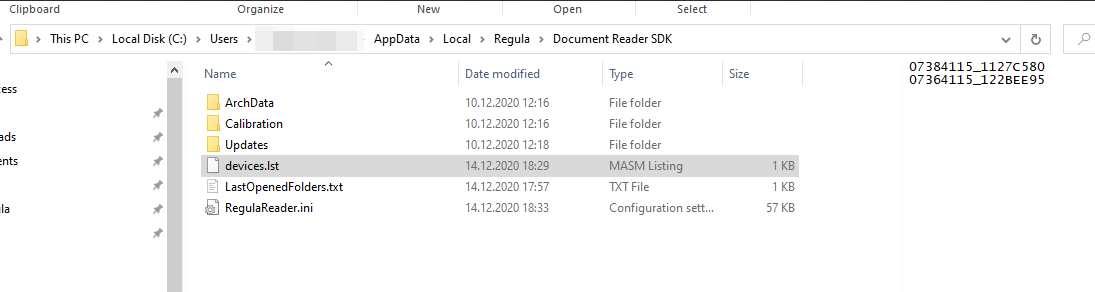
You can download the latest up-to-date version of the Document Reader SDK via the Regula Downloads manager.
The samples will be located after installing the Document Reader SDK and can be found in C:\Program Files (x86)\Regula\Samples.
Please, also check the information about the COM object, the Document Reader application, and the Programmer's Guide.
Comments
Please sign in to leave a comment.